

Documentation Index
Fetch the complete documentation index at: https://sigma-docs.pastel.africa/llms.txt
Use this file to discover all available pages before exploring further.
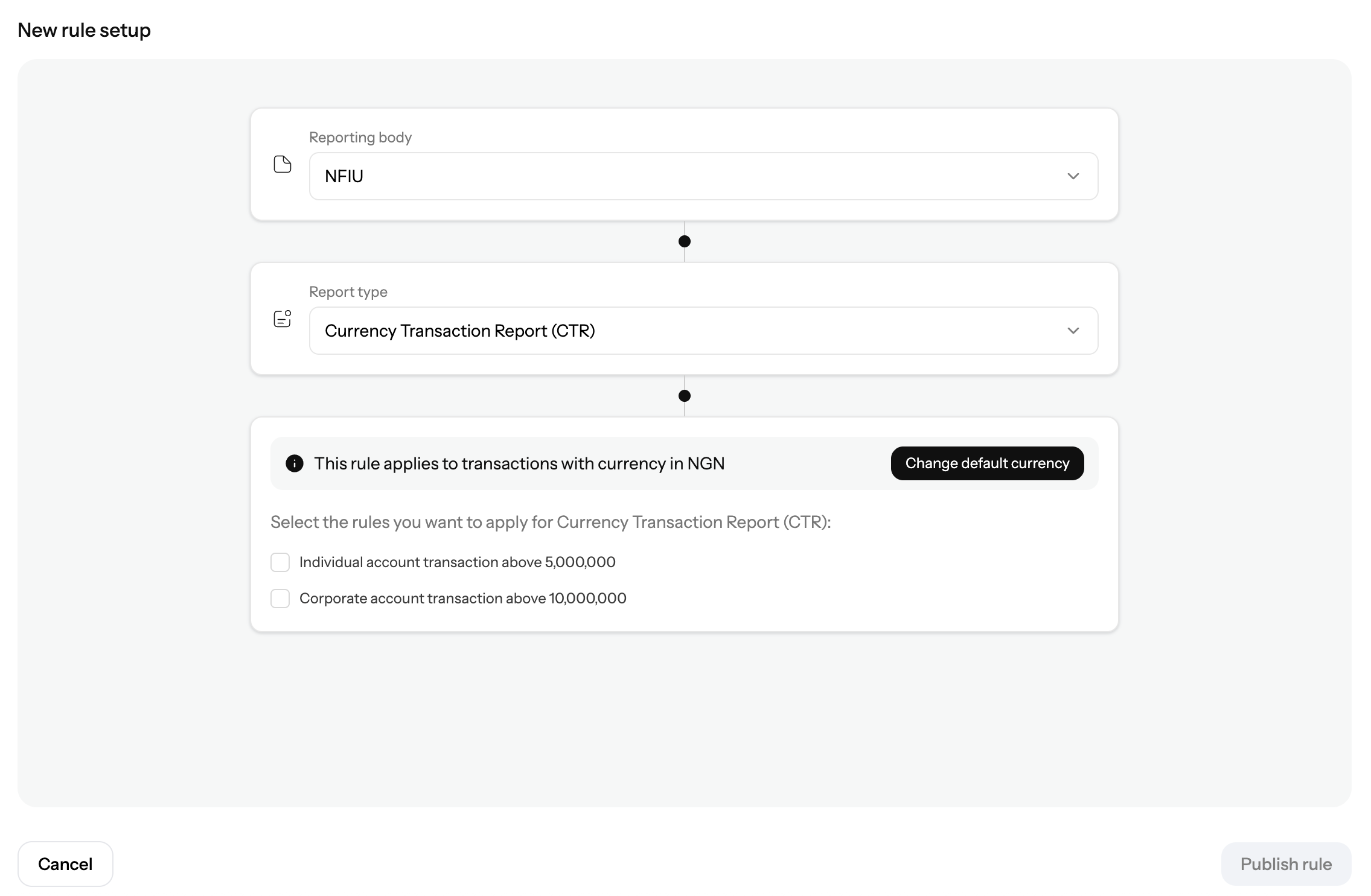
Setup rules for reporting
Rules setup
Overview
Automatic reporting lets you save recurring reporting checks as rules. If your team reviews the same reporting scenarios often, you can publish a rule once and manage it from the Rules page instead of repeating the setup each time. Rules are created from a guided setup page. You choose a reporting body, choose a supported report type, select one or more predefined rule instructions, and publish the rule. This makes automatic reporting useful for repeatable compliance scenarios where your team wants consistent handling instead of rebuilding the same reporting logic each time.Before you start
- Set up your reporting agents and entities in Reporting → Preferences
- Decide which report type you want to configure
- Check the default currency before publishing
- Make sure the rule instructions you want are available for the selected report type
Create a rule
- Go to Reporting → Rules
- Click Create new rule
- Choose the Reporting body
- Choose the Report type
- Select the rule instructions that match what you want to monitor
- Review the default currency shown for the rule
- Use Change default currency if needed
- Click Publish rule
What you choose during setup
The rule setup asks for:- Reporting body
- Report type
- One or more rule instructions from the predefined list
- Default currency for the transactions the rule should evaluate
Supported rule types
Rule creation is available for NFIU reporting with:- Currency Transaction Report (CTR)
- Funds Transfer Report (FTR)
Default currency
The rule setup page shows the currency the rule applies to. If the currency is not correct:- Click Change default currency
- Select the correct currency
- Save the change
Publish the rule
When everything is set, click Publish rule and confirm the action. Once published, the rule is added to your rules list. From there, the rule becomes part of your ongoing rule management workflow.Manage rules
From the Rules page, you can review your rules and manage them as needed.- Review the rule name, type, creator, status, and date created
- Pause or resume a rule
- Delete a rule
- Open Logs to see rule activity
- Use Create case when a rule needs escalation or investigation
Rule lifecycle
- Active rules are in use
- Paused rules remain saved but are temporarily disabled
- Inactive rules are effectively removed from active use after deletion
Logs and case management
The Logs action helps you inspect activity tied to a rule. Use Create case when a rule result needs a more formal investigation or case workflow outside the rule list itself. This separation is useful because not every rule event should immediately become a report or enforcement action. Sometimes it first needs analyst review.How automatic reporting fits into the workflow
In practice, automatic reporting supports the front end of the workflow:- Your team publishes a rule for a recurring scenario
- The rule remains available on the Rules page for ongoing management
- Teams use logs and case creation to monitor and investigate rule outcomes
- Reporting operations remain connected to the broader report review process
Tips
- Start with a small number of rules and expand gradually
- Keep the default currency aligned with the transactions you expect to review
- Review logs regularly to confirm the rule is behaving as expected
- Revisit your selected instructions when reporting expectations change